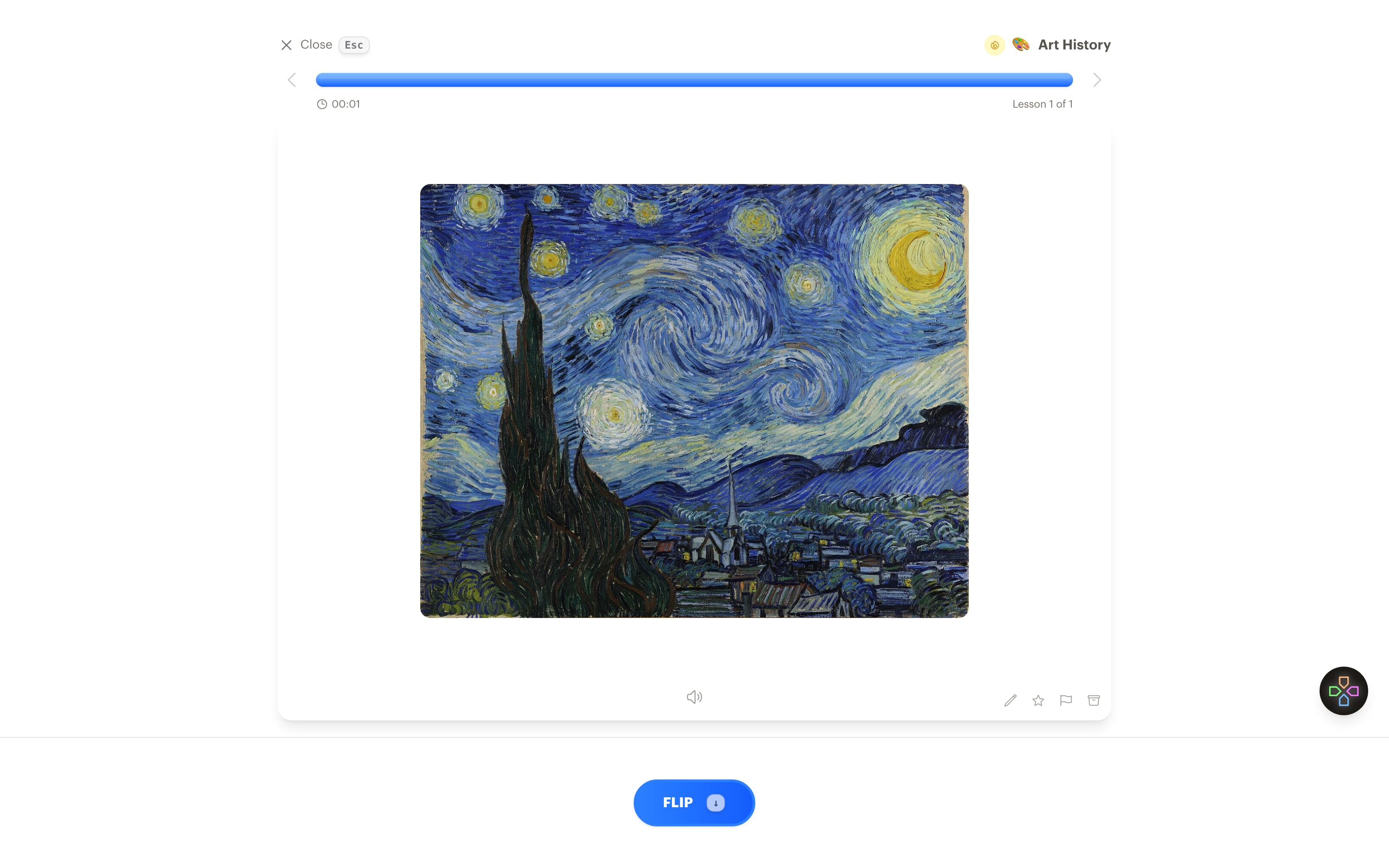
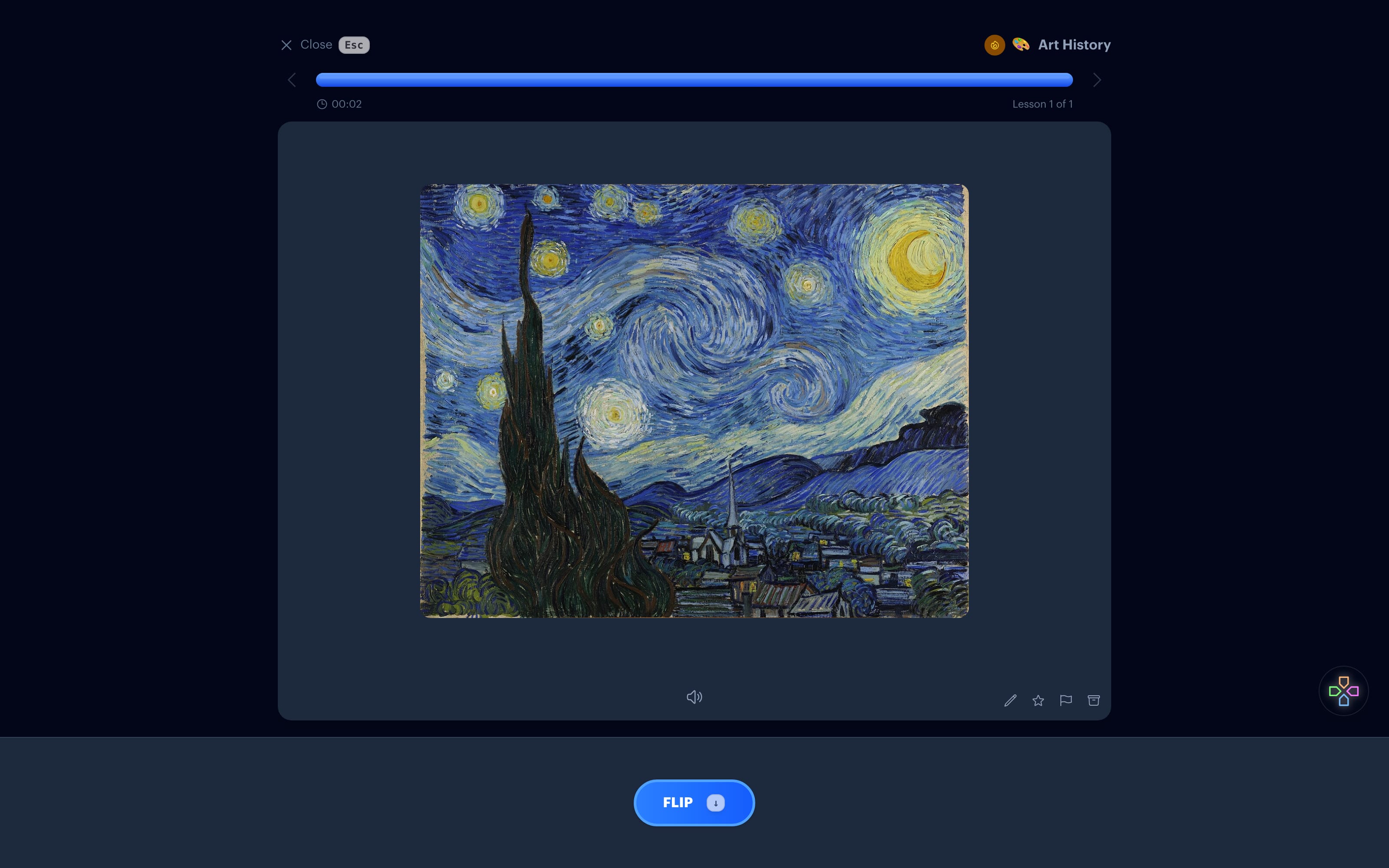
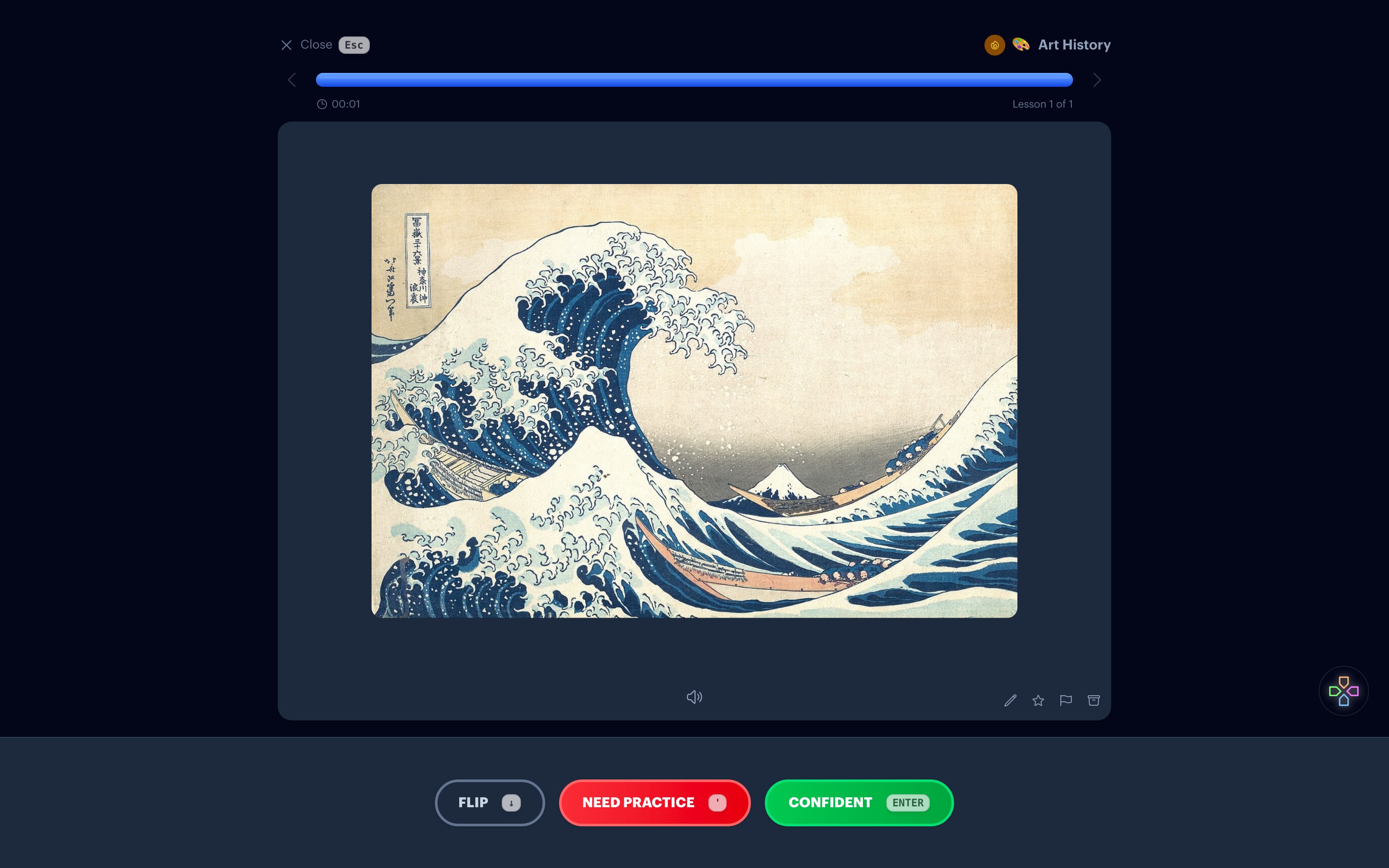
Art history exams show you a slide and ask what it is. So study that way: put the work on the card and recall the title, the artist, and the period from the image alone.
Four ways to study a work of art
Put the work on the card
On a new flashcard, click Fetch image, type the name of the work, and Interact finds a picture of it and places it on the card. You can also paste or drop in an image from your course slides.
Fetch imageAsk one question per card
A card that asks for the title, artist, year, and movement at once is hard to grade. Make a few cards for the same image instead: one for the artist, one for the period, one for where it hangs. You'll find out which fact you keep missing.
How lessons workAdd the reverse card
Recognizing a painting and picturing it from its title are different skills. Check Create reverse card when you save, and Interact makes a second card with the two sides swapped.
Flashcards in lessonsType the names you need to spell
If the exam wants "Artemisia Gentileschi" written out, practice writing it. A typed answer exercise makes you produce the name instead of nodding at it.
Type the answer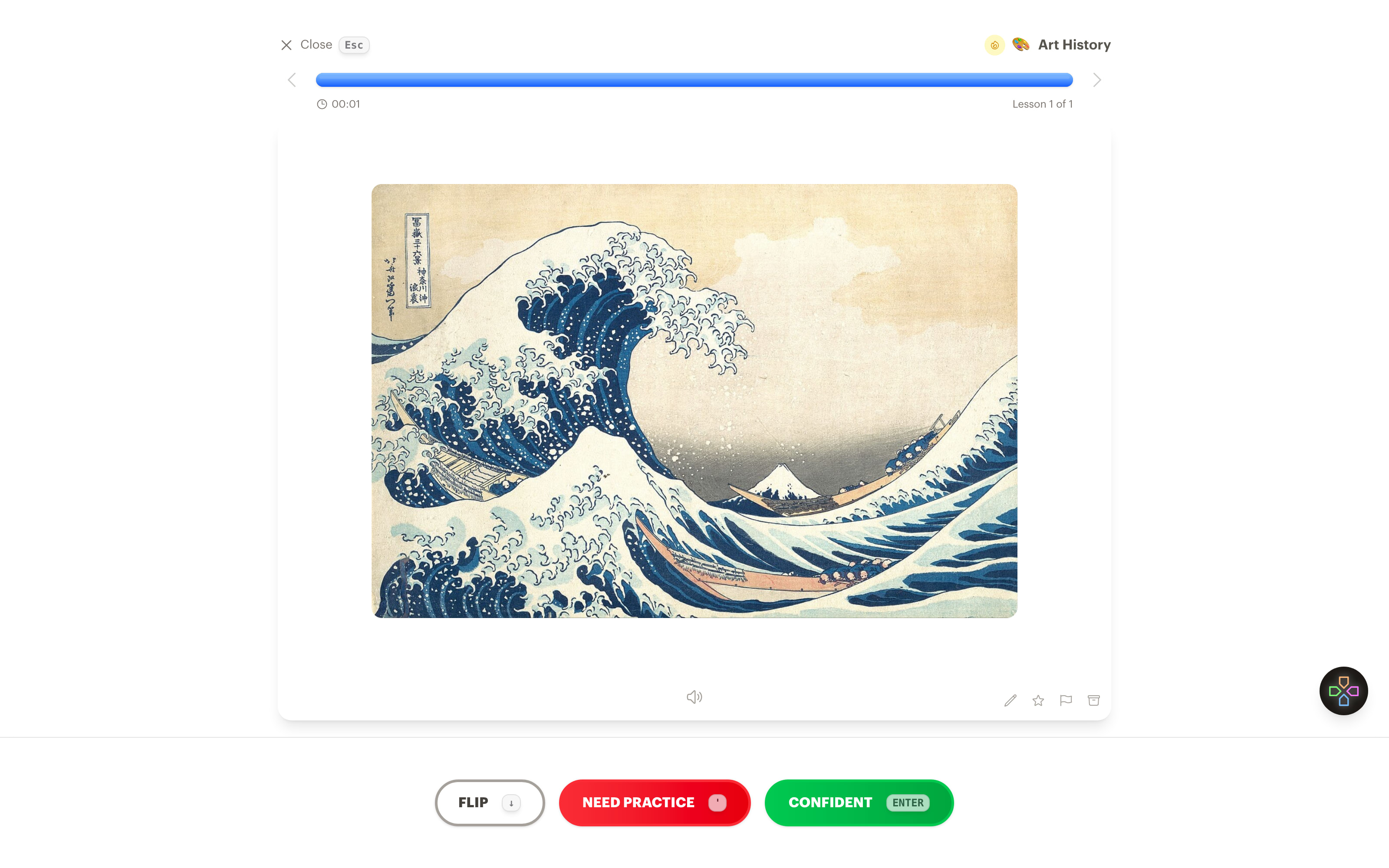
Start from a list
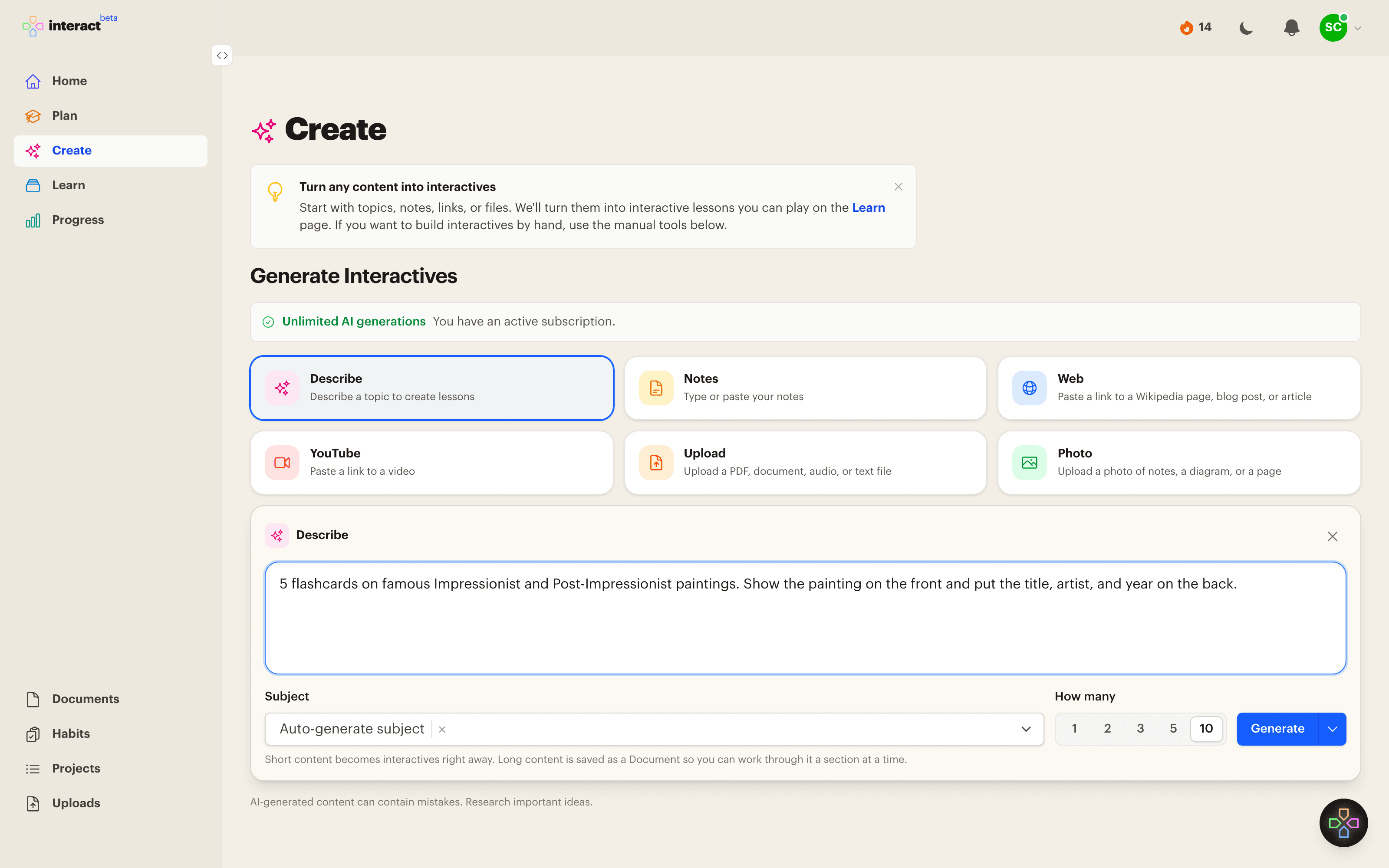
You don't have to build every card by hand. Describe the set you want and say the painting goes on the front. Interact drafts the cards for a whole movement or a whole unit and fetches the image for each one.
If your course has a required works list or lecture slides, upload the PDF and the cards come from your own material.
Start with a prompt
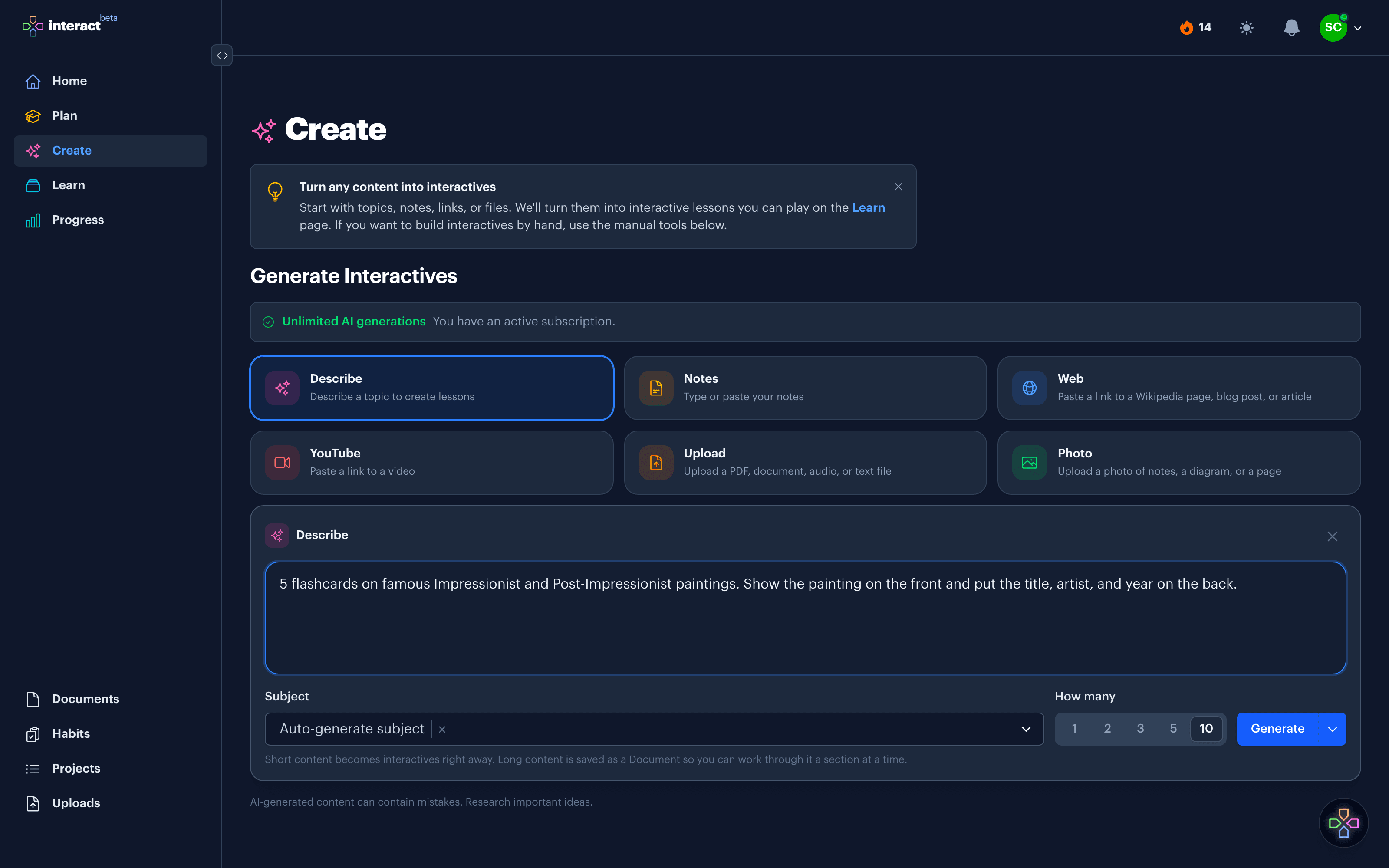
The Describe option on the Create page turns a sentence into a set of interactives. This one is a reasonable first set. Change it to match what you're studying.
5 flashcards on famous Impressionist and Post-Impressionist paintings. Show the painting on the front and put the title, artist, and year on the back.
Common questions
Where do the images come from?
Fetch image searches the web for a picture that matches your description, starting with Wikimedia Commons. Check that the image is the right work before you keep it, and follow your school's rules for anything you share.
Can I use images from my own slides?
Yes. Paste, drop, or attach an image on either side of a card.
Does it work for architecture and sculpture?
Yes. Anything with a picture works the same way: buildings, sculpture, manuscripts, photographs, maps.
Is it free?
Making cards by hand and attaching your own images is unlimited on every plan. The free plan includes 10 AI generations a month.
Know the slide before it's on the screen
Get Started Free
No credit card required
More things to learn
Languages
Learn vocabulary from pictures instead of translations, in both directions.
Math
Formulas that render like a textbook, with the worked steps on the back.
Programming
Syntax highlighted snippets to read, and exercises that make you type the answer.
Anatomy
Mask the labels on a diagram and name each structure from memory.
Trivia
Describe a round in one sentence and play it as a quiz.


Made with
in Orlando, Florida.
© 2026 Create With LLC. All rights reserved.