

Made with
in Orlando, Florida.
© 2026 Create With LLC. All rights reserved.
Guides
Many employers offer a learning stipend. Here's how to download your Interact receipts from Stripe or Apple and expense your subscription.
Many employers set aside a learning or professional development stipend for their team. Interact is a learning tool, so it usually qualifies.
Look in your employee handbook or benefits portal for terms like "learning stipend," "education budget," or "professional development." If you can't find anything, ask your manager or HR.
Where your receipt lives depends on where you subscribed.
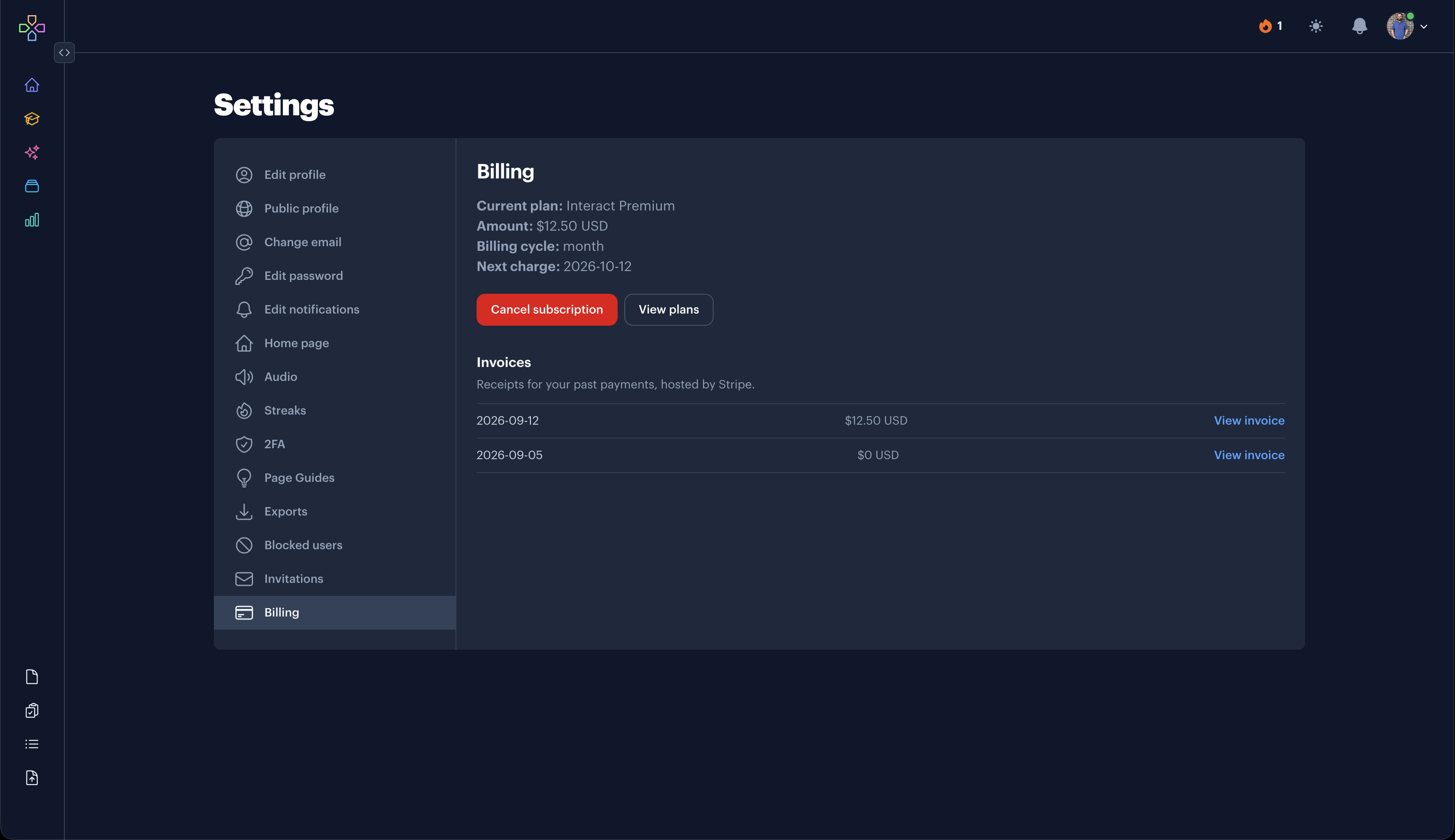
Open the Billing page and find the Invoices list. Click View invoice next to any payment to open it on Stripe, where you can download a PDF. Stripe also emails you a receipt after each payment.
{: #app-store-receipts}
Apple handles billing for App Store subscriptions, so your receipts come from Apple. You can find them here:
Upload the receipt to your company's expense tool, or send it to whoever handles reimbursements. On a monthly plan you'll have a receipt each month. On an annual plan you'll submit once a year.
If your company needs a different invoice format or extra details on the receipt, email us and we'll help.