Most of what you read is gone in a week. Interact gives a book chapter or a web article a clean page to read on, keeps your place, and turns the parts worth keeping into practice you'll see again.
A page made for reading
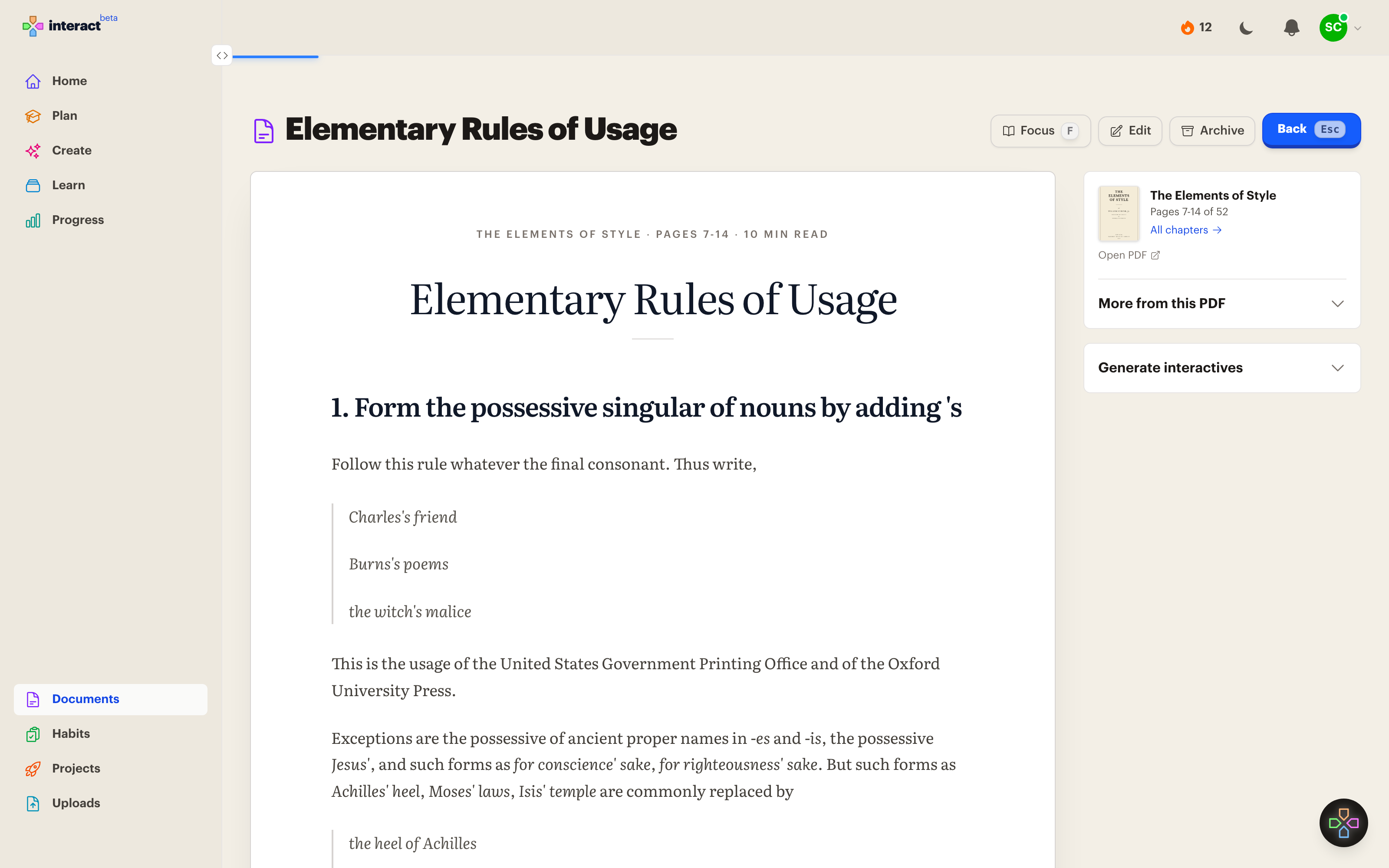
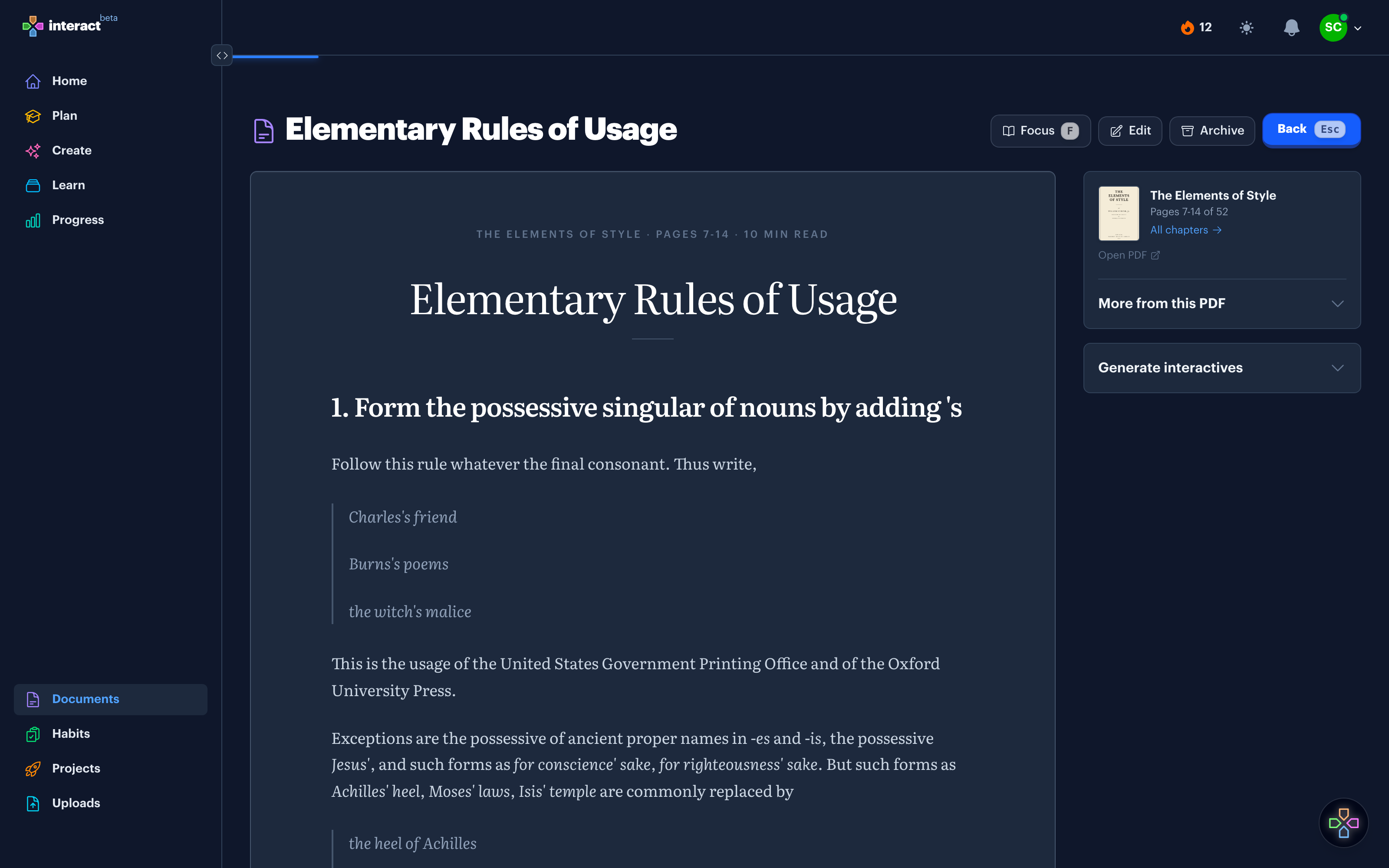
Set like a book
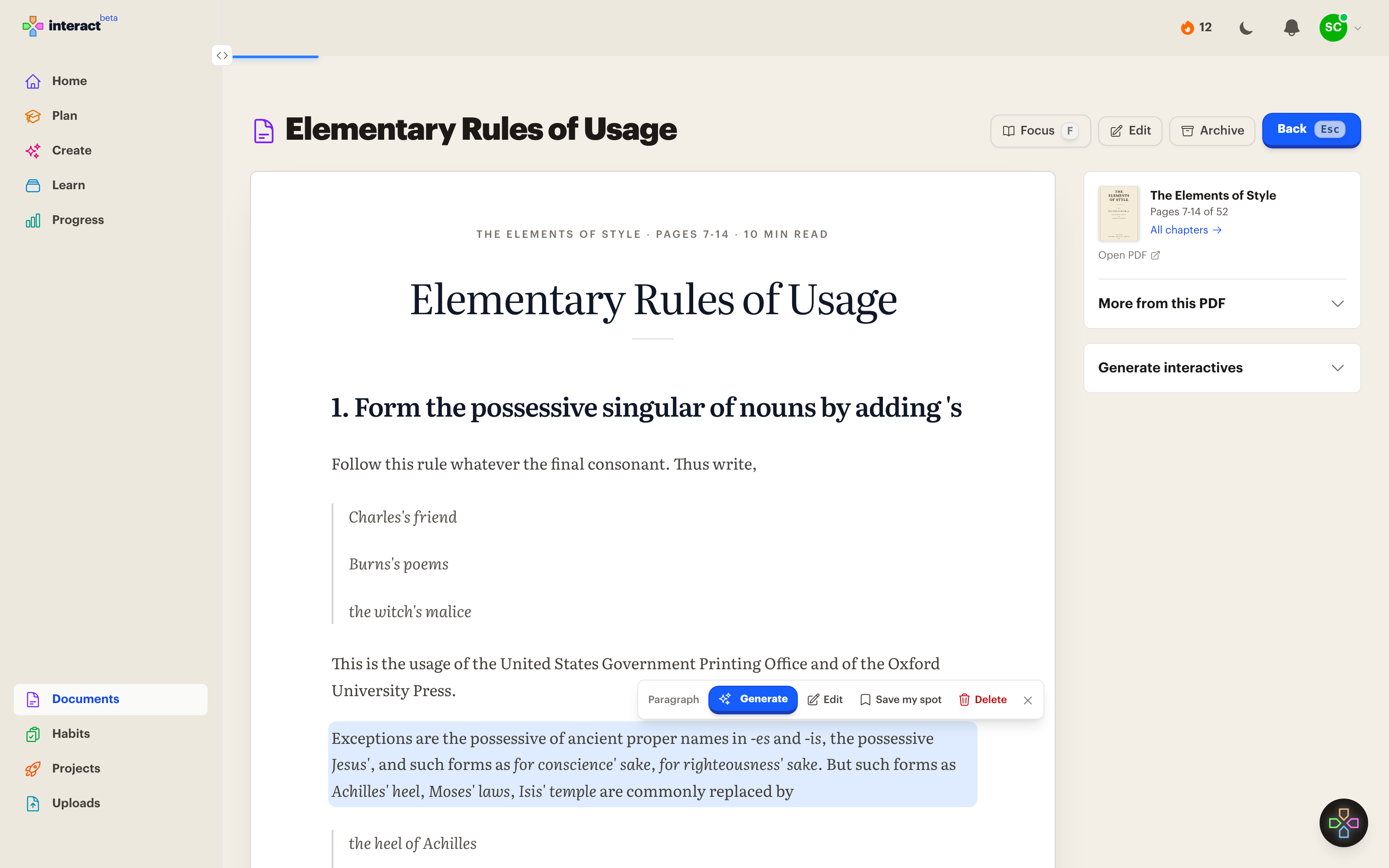
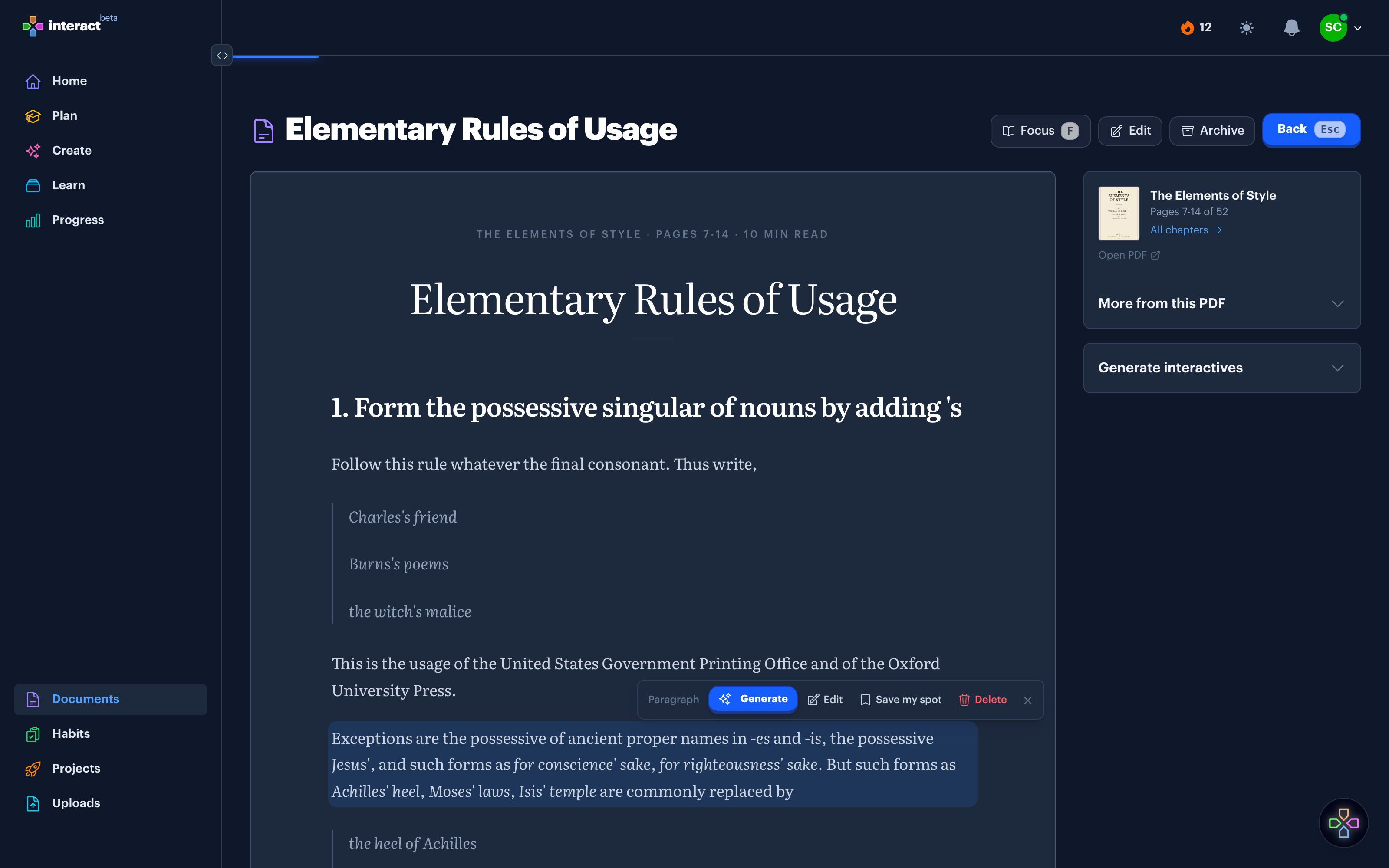
One centered column in a serif face, with the headings, quotes, tables, math, and code the source had. The line above the title says which book or Collection the Document belongs to and how many minutes it takes to read.
A progress bar
A thin bar across the top fills as you move down the page, so you know how much is left without scrolling to check.
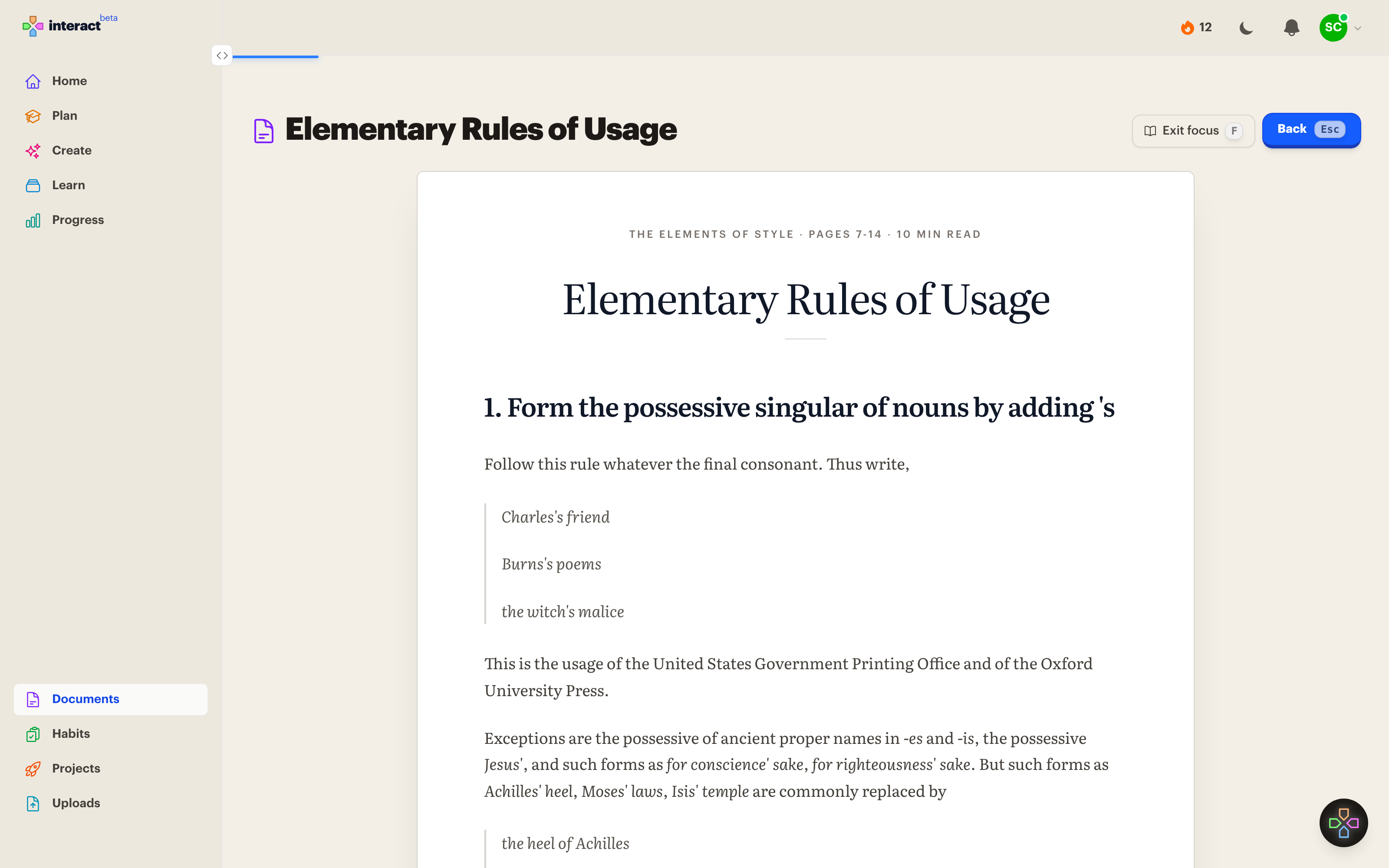
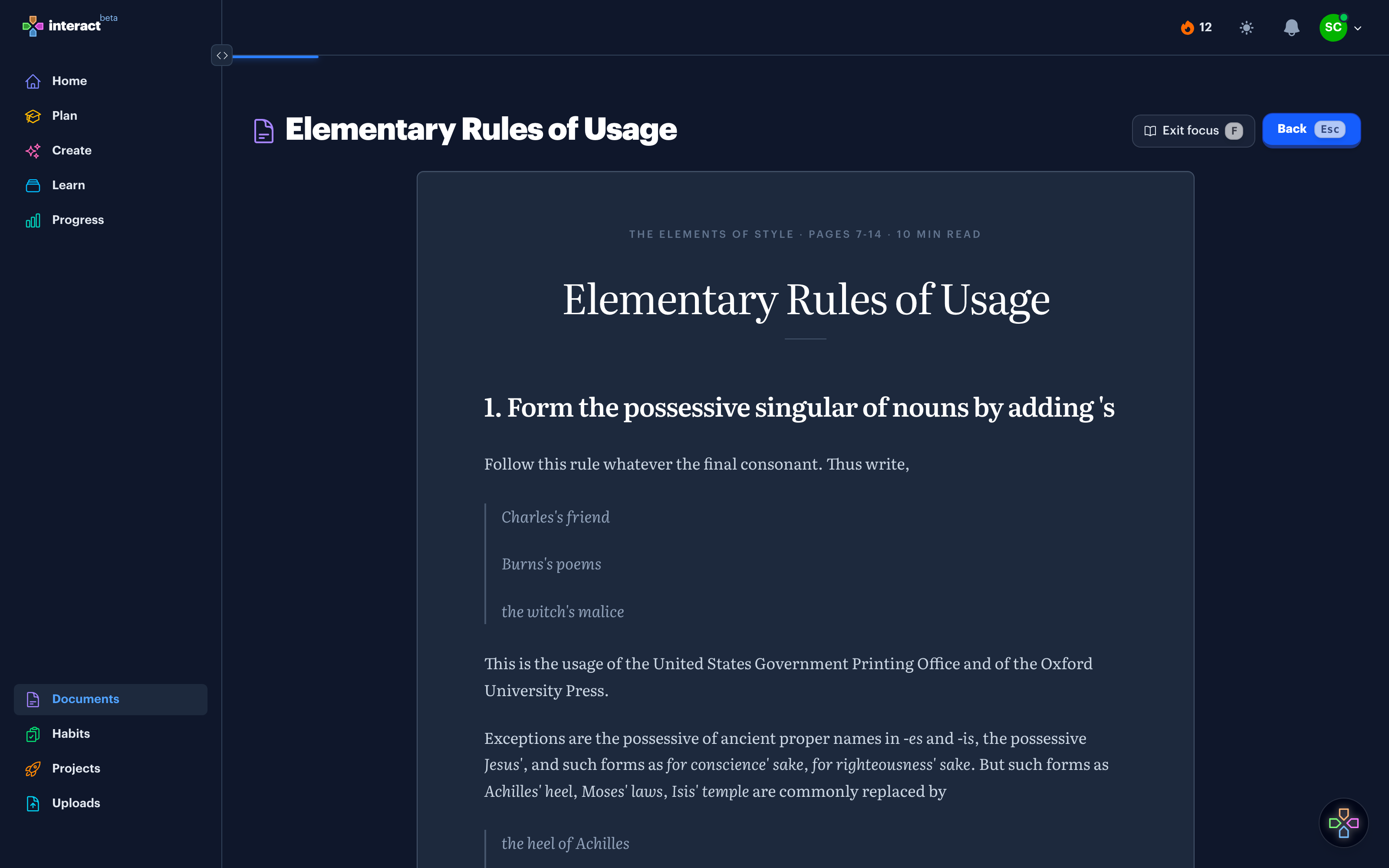
Focus mode
Press F and the tools beside the page go away, leaving the text by itself. Press F again to bring them back.
Pick up where you stopped
Click the paragraph you stopped on and choose Save my spot. A bookmark marks the line, and a Continue button on the Documents and Uploads pages takes you straight back to it.
A PDF keeps one spot across all of its chapters, the way a book has one bookmark. Your spot is saved to your account, so the iPhone and iPad apps open to the same place.
Keep a book together
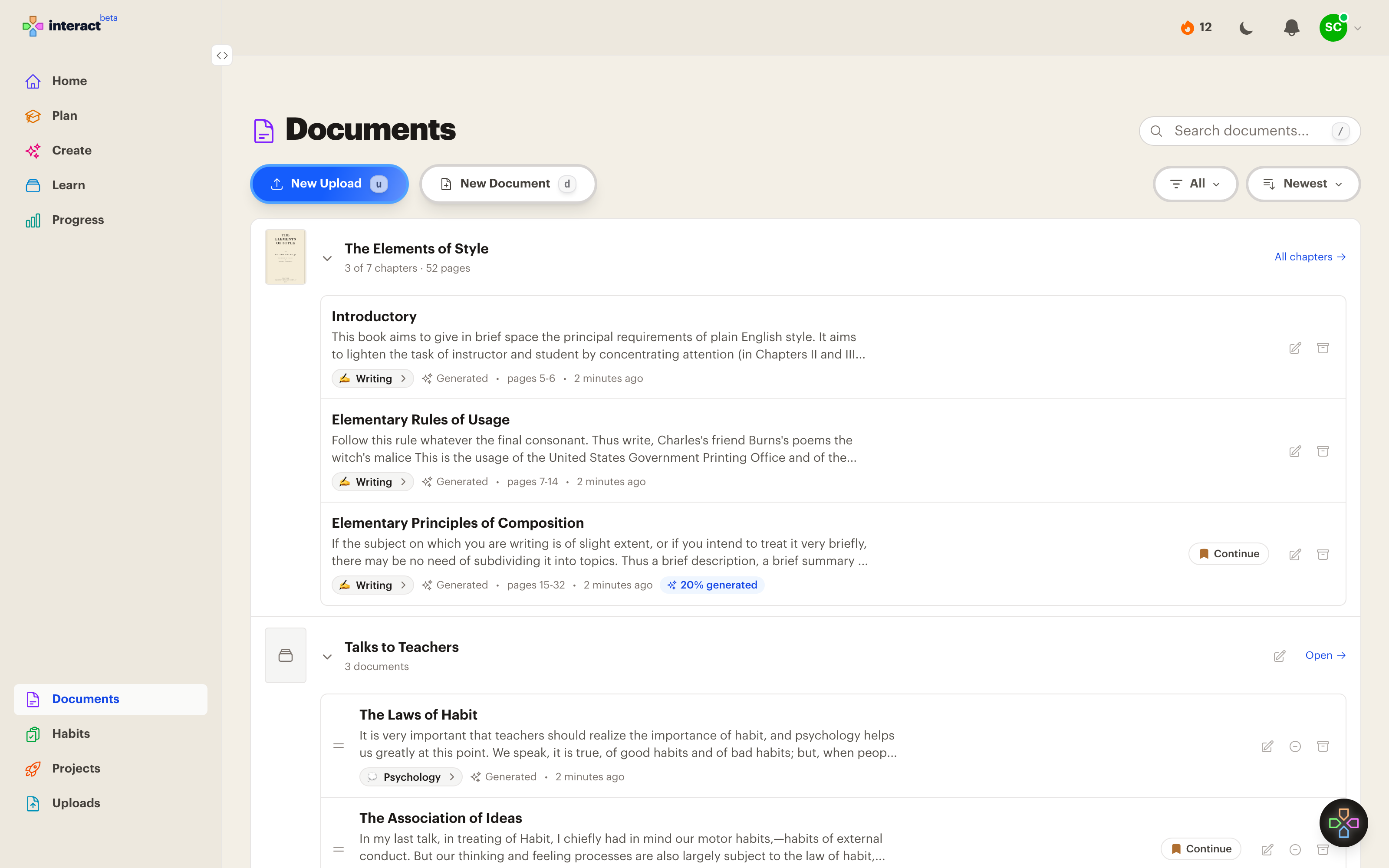
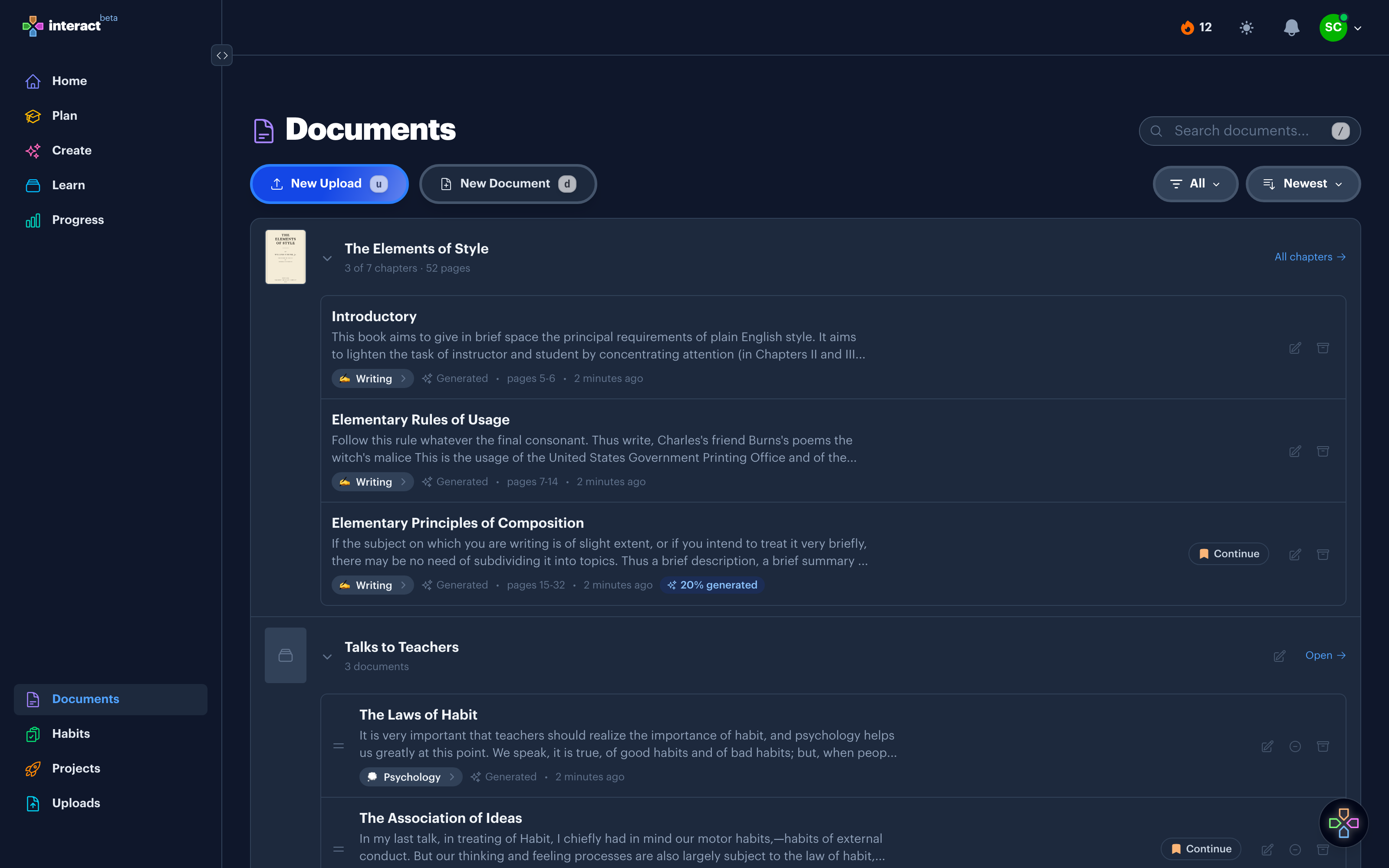
The chapters of a PDF stay grouped under its cover, in page order, each one a Document of its own. For everything else there are Collections. Gather web pages, or Documents you wrote, under one name and put them in the order you want to read them.
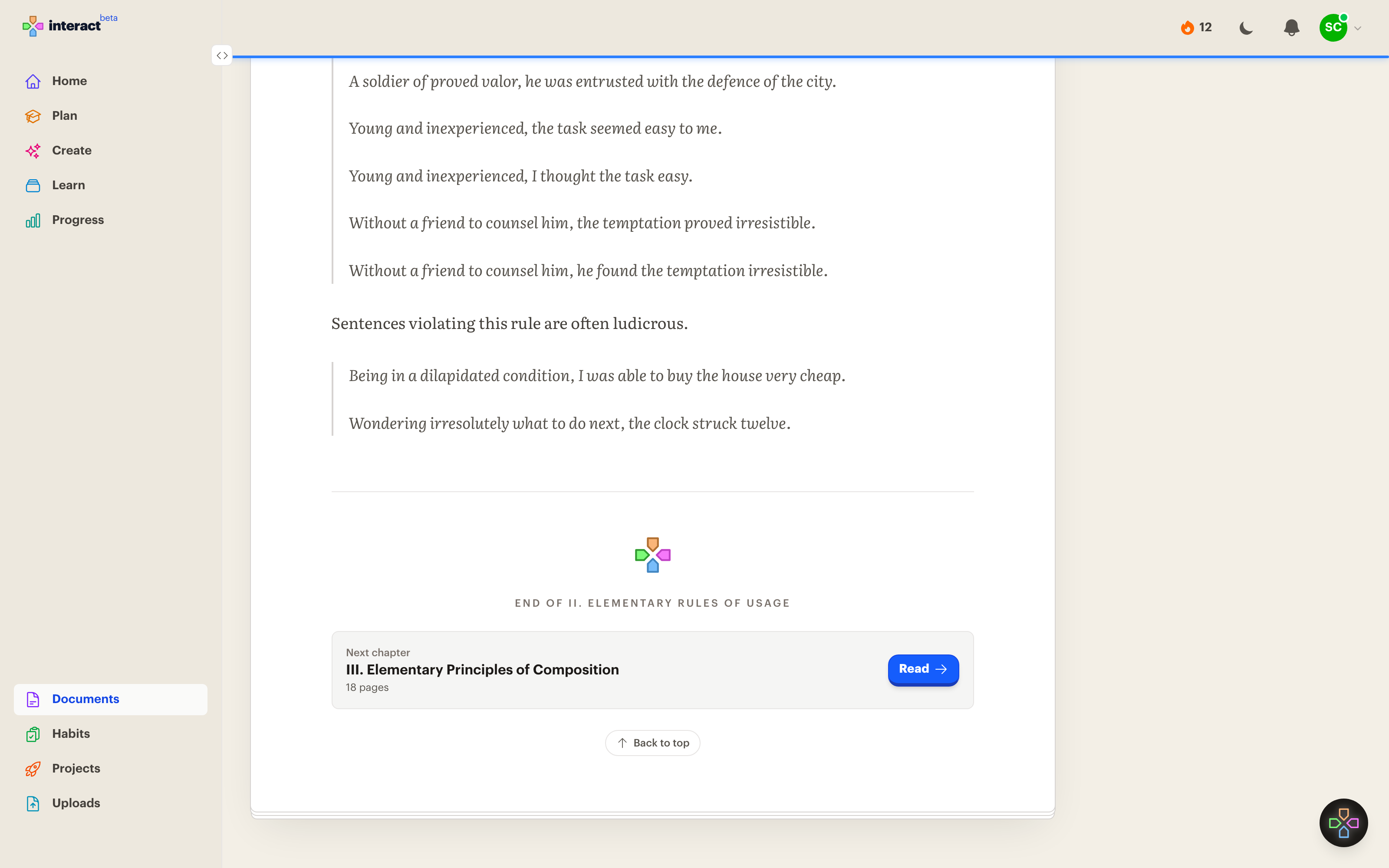
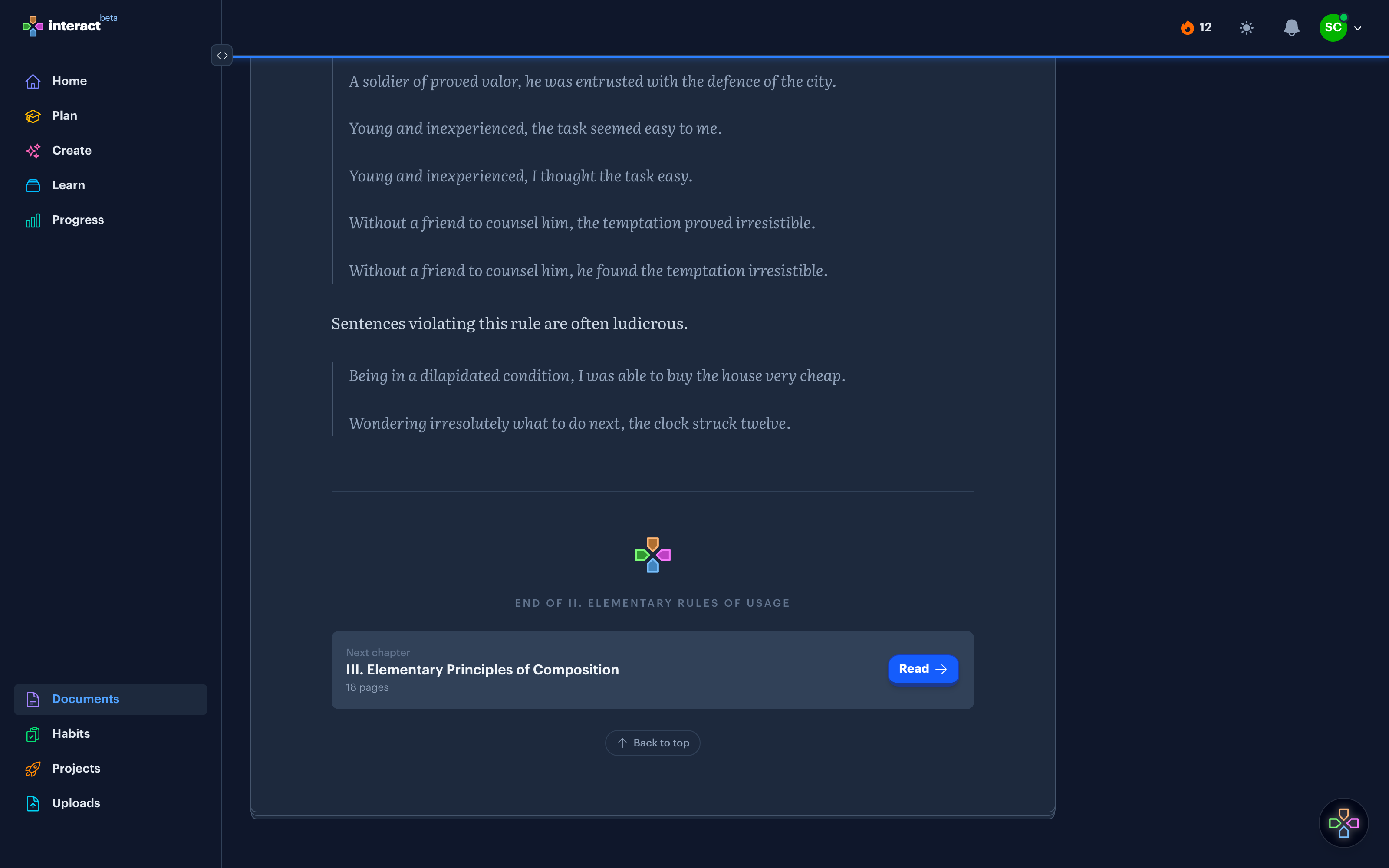
Drag one Document onto another to start a Collection, or choose one when you bring in a new page. When you reach the end of a Document, the next chapter or the next Document in the Collection is one click away.
Turn what you read into practice
From one passage
Click a paragraph or a list item to select it, or a heading to select its whole section, then choose Generate. Interact makes interactives from that part and nothing else.
From the whole Document
Open Generate interactives and work through the Document in batches. Each batch reads the next stretch of text, and a progress bar shows how much you've covered. Turn on Keep going to run batch after batch until the end.
Edit as you go
The same toolbar edits or deletes a selection, with undo. Cut the acknowledgments, fix a typo, or trim a chapter down to the part you need.
Where Documents come from
A PDF
Upload a textbook and read it a chapter at a time. The PDF Study Tools page covers how a PDF becomes Documents.
A web page
Paste a link on the Create page and the page is kept as a Document. A short page becomes interactives right away. A long one is saved for you to read and work through a section at a time. More on the Website to Flashcards page.
Your own writing
Start a new Document and write or paste in Markdown.
Common questions
What can I read?
PDFs up to 10 MB, public web pages, and anything you write or paste in Markdown. There is no EPUB or Kindle import.
Can I highlight and take notes?
Not yet. You can select a passage to generate from it, save your spot on it, or edit it, but there are no saved highlights or margin notes.
Does it work on my phone?
Yes. The iPhone and iPad apps have Documents and Uploads under the More tab, with the same saved spot and the same Collections.
Is it free?
Reading, saving your spot, and Collections are free on every plan. Bringing in a PDF or a web page and generating interactives count toward the free plan's 10 AI generations a month.
Read something worth keeping
Get Started Free
No credit card required
More ways to learn with Interact
YouTube to Flashcards
Paste a video link and get flashcards, quizzes, and fill-in-the-blanks built from it.
YouTube to Quiz
Generate a multiple choice quiz from any YouTube video and edit every question.
PDF to Flashcards
Upload lecture slides, textbook chapters, or photos of notes and study them as flashcards.
PDF Study Tools
Turn a textbook into a clean Document and work through it a chapter at a time.
Website to Flashcards
Turn any article or webpage into study material by pasting the link.
Notes to Flashcards
Paste typed notes or snap a photo of handwritten pages and make them reviewable.
Visual Flashcards
Put an AI-drawn picture on the back of a vocabulary card instead of a translation.
Fetch Image
Name a painting, a landmark, or a species and the picture lands on your card.
Image Occlusion
Mask the labels on a diagram or map and quiz yourself on what is underneath.
Type the Answer
Exercises that make you type what you know, with grading that forgives typos.
Interactive Lessons
Five lesson types with animations, sound effects, and keyboard shortcuts that keep review fun.
Flashcards on Apple TV
A native tvOS app for reviewing your queue on the big screen.
Flashcards on Apple Watch
Dictate card ideas from your wrist and they land in your study queue.
Personal Curriculum
Organize subjects, goals, and resources for everything you are learning.
Progress & Streaks
Track a daily streak, watch goals move, and catch follow-ups without breaking focus.
Ask
Ask a question, then say what to build or change. No clicking through screens.


Made with
in Orlando, Florida.
© 2026 Create With LLC. All rights reserved.